
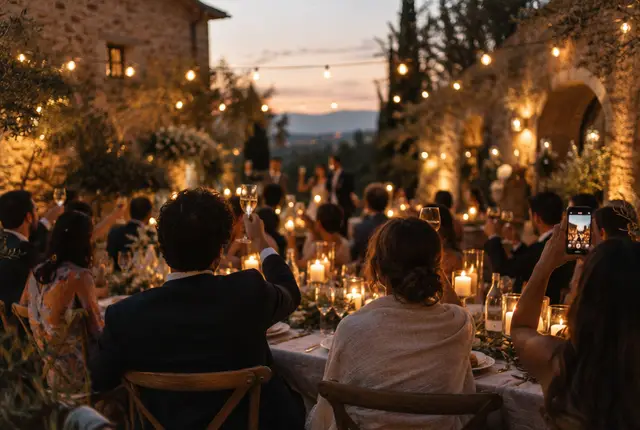
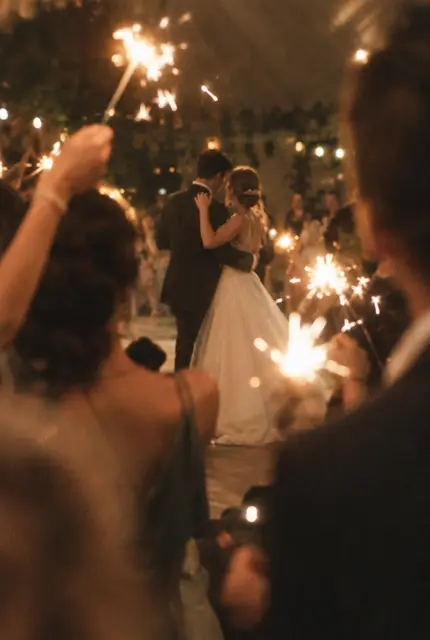
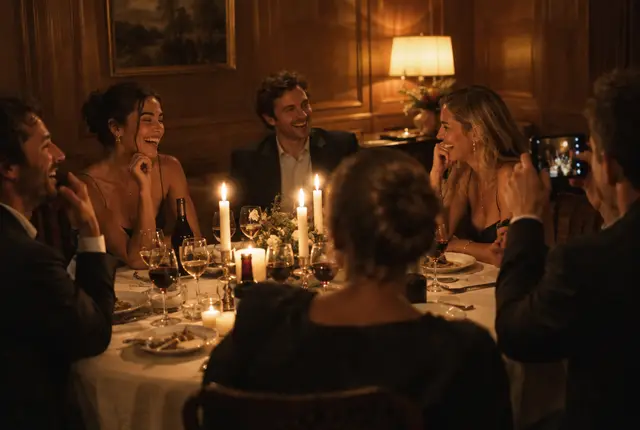
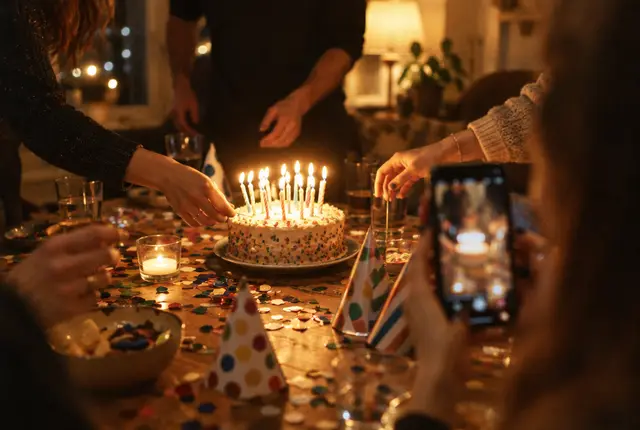
Keep it in the event’s collection
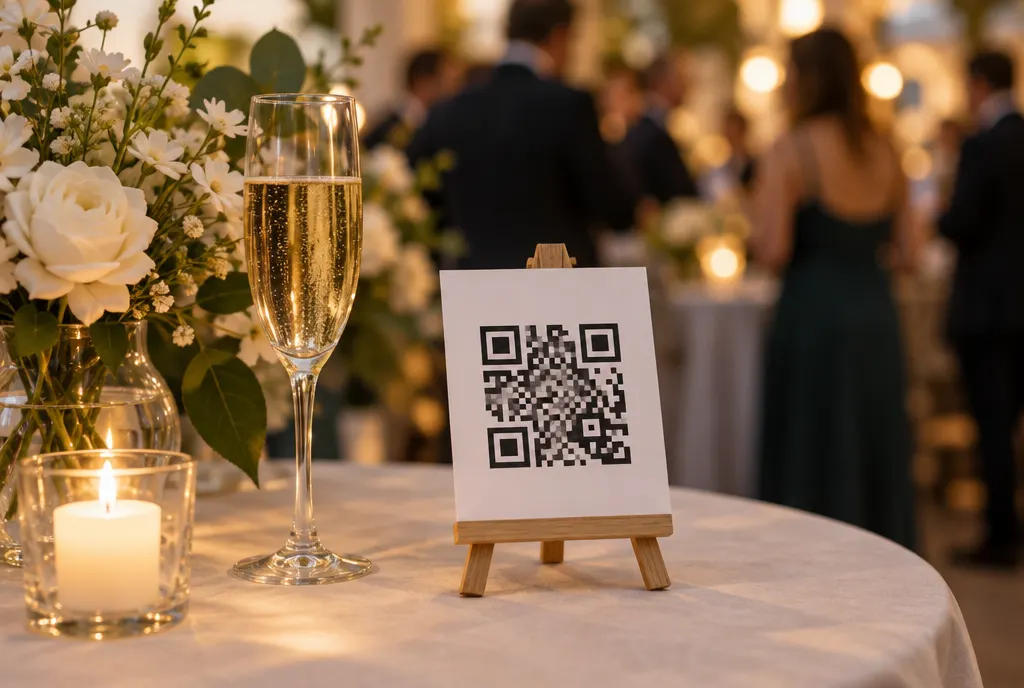
Guest photos and videos, by QR code
Every guest has a camera. Now the evening has one album.
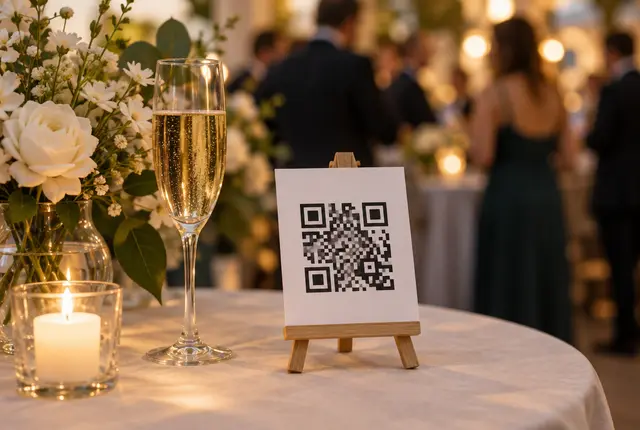
MomentFlow gathers the photos and videos your guests take — from a QR code on the table, with no app and no account. Everything stays private until you approve it, then plays on the Live Wall, fills a gallery and keeps the evening in order.
- No app, no account
- Private until you approve
- Stored in the EU
StageScan to add yoursNothing is shown until you approve it
Try it
Five taps, from the table to the screen.
This is the whole evening in miniature. Scan the code, take a photo, send it, approve it as the organiser — and watch it arrive on the wall.
- ScanThe guest’s camera opens the event’s page.
- CaptureA photo, a video — whatever the moment is.
- SendWith the guest’s two choices attached.
- ApproveYou see it first. Nothing is shown before.
- On the wallApproved, and on the screen in the room.
Ayla & Deniz
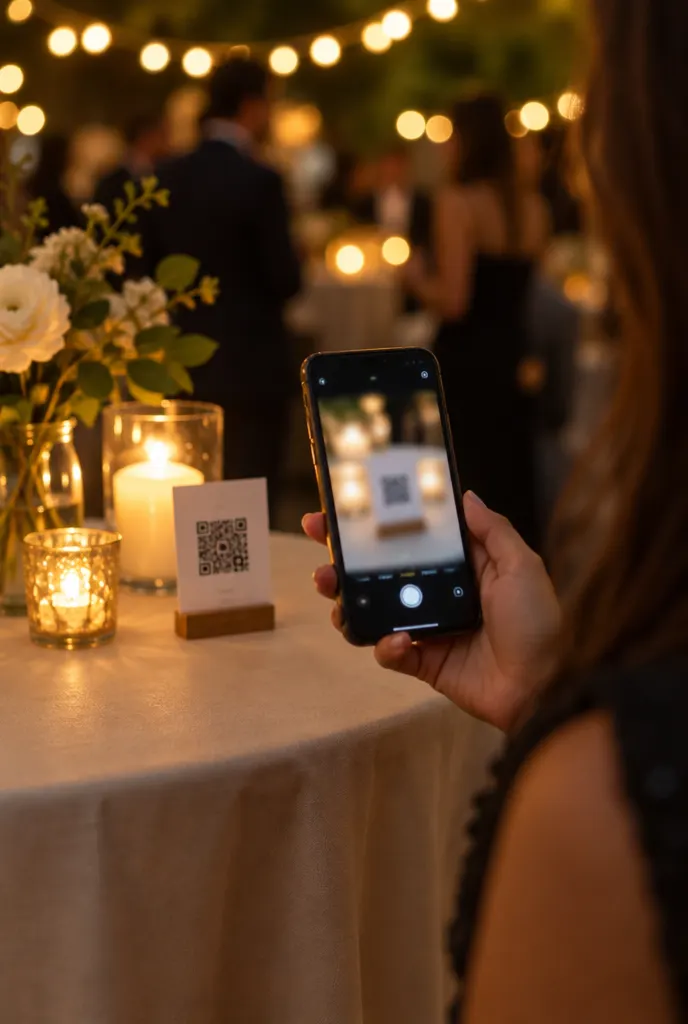 Point the camera at the code
Your reviewOnly your team sees this
—
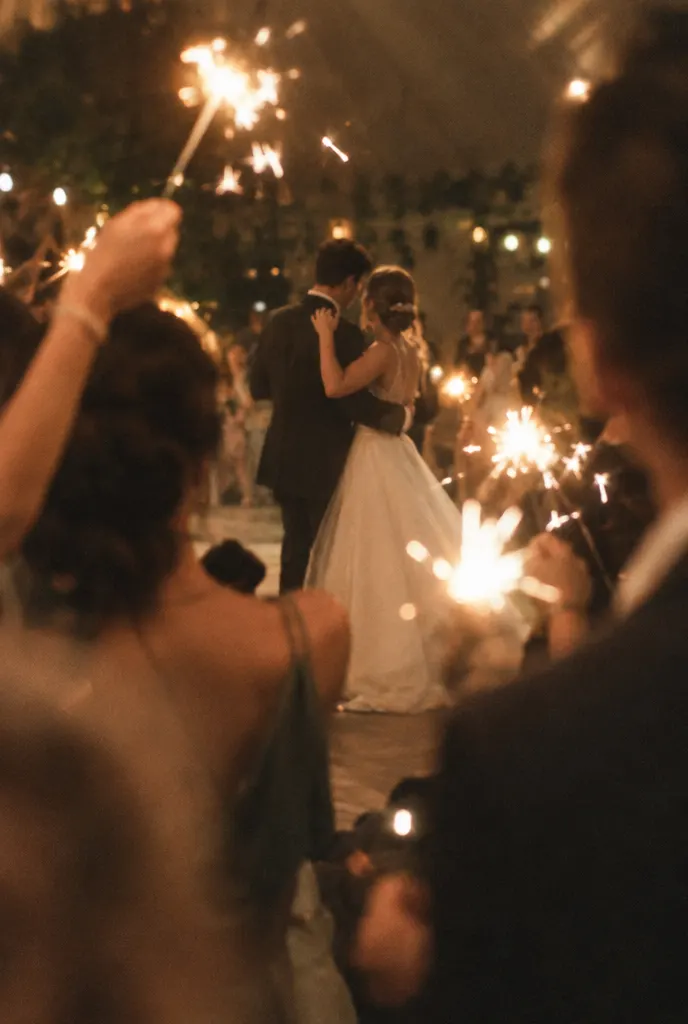
by JonasDance floor
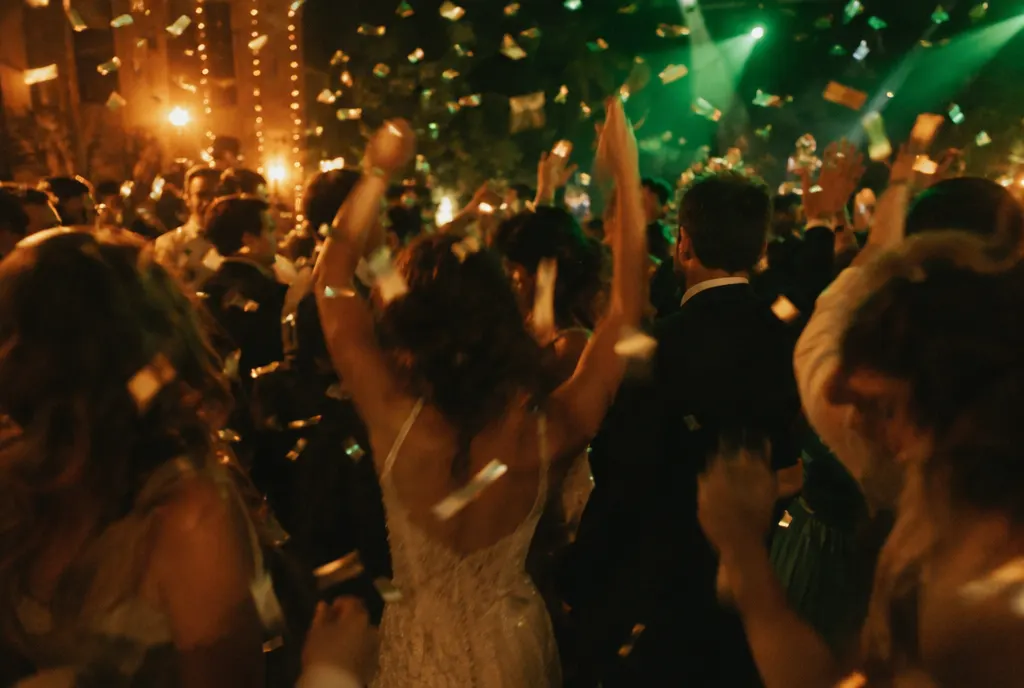
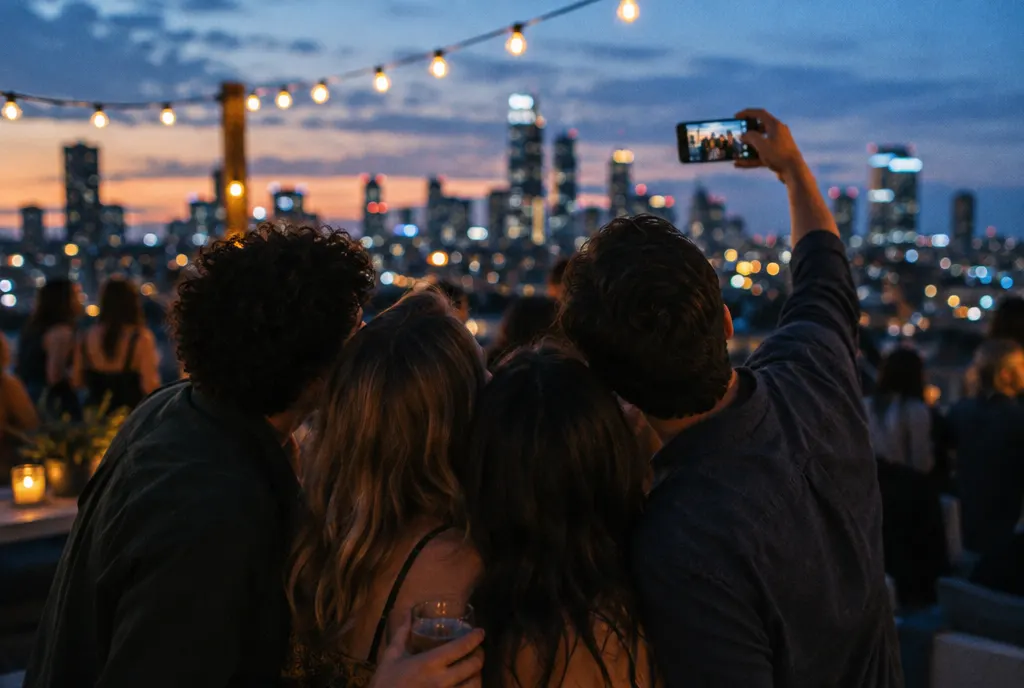
Ayla & Deniz
Scan to add yoursNo app needed
Illustrative example — invented event, sample photographs.
For the guest
Scan, choose, send. That is the whole instruction.
A guest points their phone at the code and lands on a page in their own language. No download, no sign-up, no password to remember at a wedding.
- Scan the codeThe phone’s own camera opens the event’s page — one per capture zone.
- Choose photos and videosStraight from the camera roll, several at once.
- Say what may happenTwo separate choices: keep it in the event’s collection, and — only if they want — promotional use.
- Keep the receiptA private link to see what they sent, and to take any of it back.
Capture zones
One code per place, so you know where every moment came from.
Give the stage, the lounge and the sponsor area their own QR code. Each moment remembers the code it arrived through, so the library can show you one corner of the evening at a time — and a code can be switched off on its own.
- Stage
- VIP lounge
- Sponsor area
- Main entrance
- Dance floor
- Photo corner
Photos and videos
Whatever the phone took, as the phone took it.
Guests send what is already on their camera roll. The page does the converting so nobody has to think about formats on a dance floor.
- iPhone photos just work
- HEIC pictures are converted in the guest’s browser before they are sent.
- Video, with a cover
- A poster frame is taken from every clip, so a grid of videos is still a grid of pictures.
- Originals are kept
- What you download later is the file the guest sent, not a compressed copy.
- A note with every moment
- Guests can add a line to what they send — a toast, a name, an inside joke. It is approved with the photo, and can play beside it on the wall.
Private by default
Nothing is public until you say so.
Every moment arrives in your media library, waiting. You decide what is approved, what is hidden and what is rejected — one at a time, or a whole selection at once.
- A grid with filters by state, zone and type
- Approve, hide or reject in bulk
- Favourites and your own collections
- A ZIP of the original files, whenever you want it
The Live Wall
Put the evening on the big screen, as it happens.
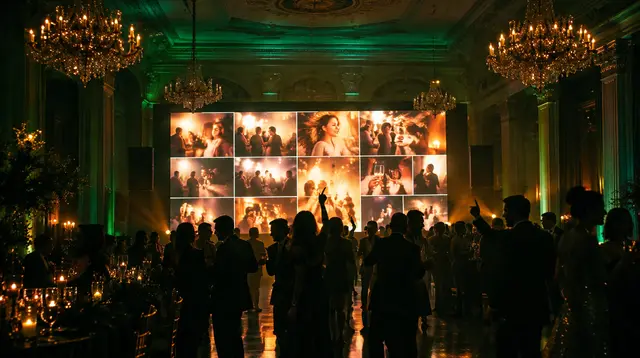
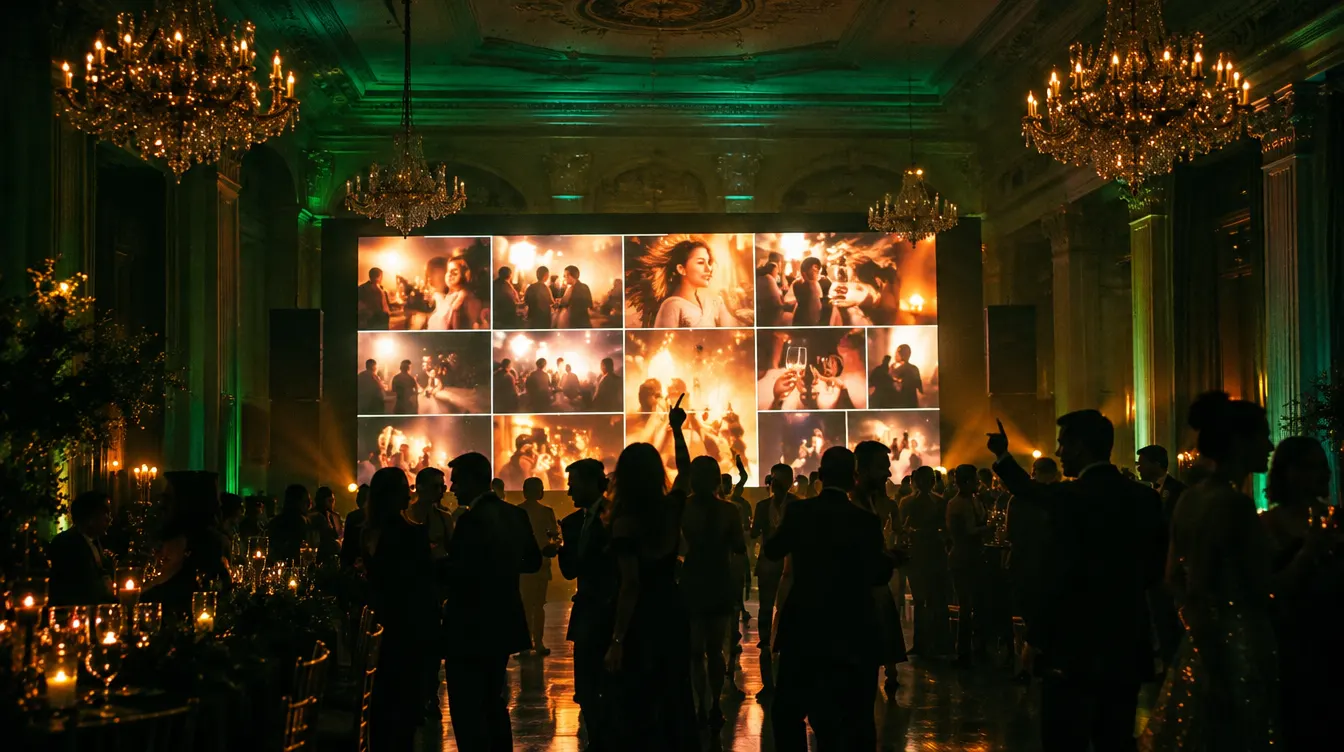
Open a display link on a TV, a projector or an LED wall. Approved moments play in the layout you choose, with a code in the corner inviting the rest of the room to add theirs.
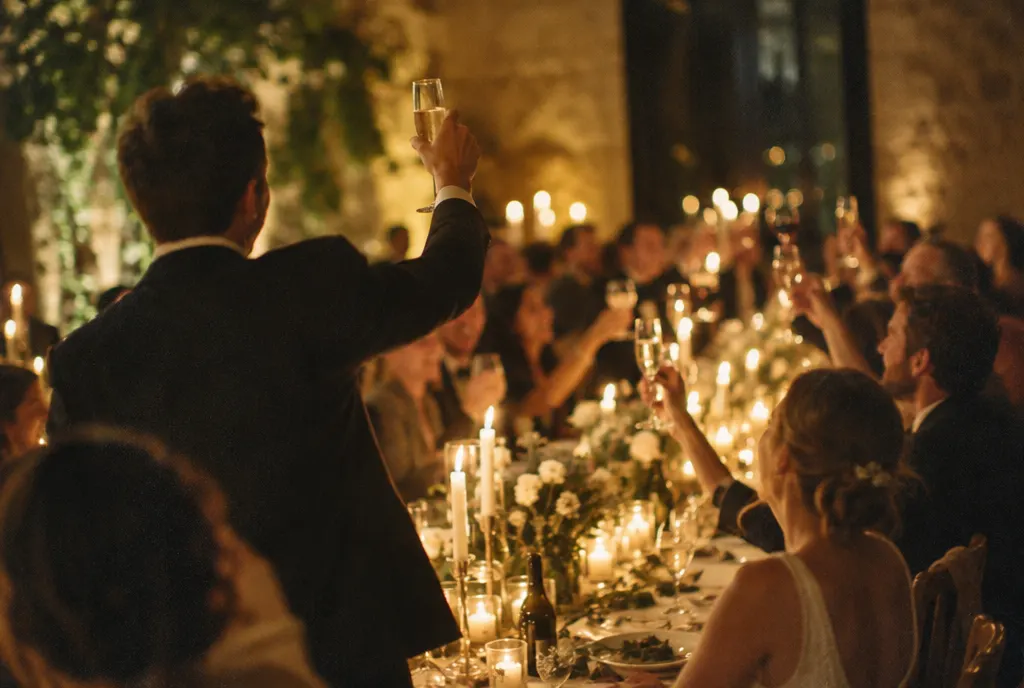
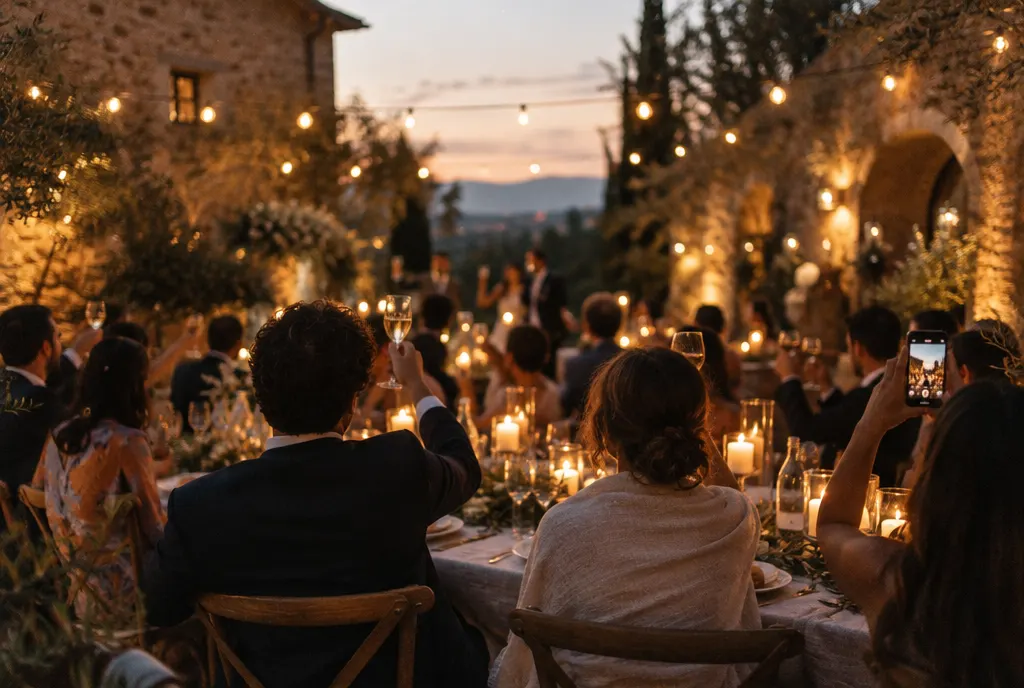
by SelinVIP lounge
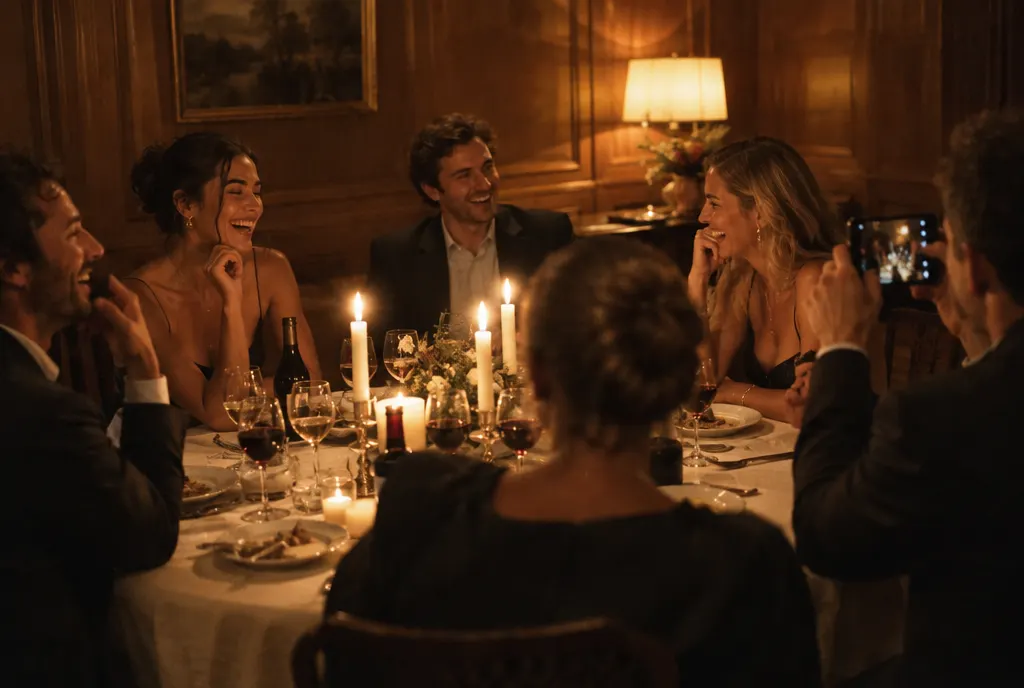
Ayla & Deniz
Scan to add yoursNo app needed
Wedding · Mosaic
This is the wall’s own engine, playing sample photographs. Illustrative example — invented event, sample photographs.
Four layouts
Cinema, Mosaic, Stream and Spotlight — switch between them during the evening.
Pause, pin, feature
Hold the screen for a speech, pin a moment, or give one the spotlight.
“Scan to add yours”
A QR overlay turns every guest watching into a guest contributing.
Names if you want them
Show who shared each moment, or show none at all.

Gallery
A private album for you, a public one only if you open it.
After the evening, approved moments can live in a gallery. It stays closed unless you choose to share it.
- Private by default
- Your team sees the whole library; guests see nothing you have not approved.
- Public when you decide
- Open an optional gallery link for guests, with only the approved moments in it.
- Without location or camera data
- Every photo shown on the wall or in the gallery is re-rendered without its location and camera details.
Rights and consent
Two questions, asked separately, answered by the guest.
Sharing a photo with the people who threw the party is not the same as agreeing to appear in their advertising. So the page asks twice, and records each answer with the moment.
Event archive
The evening, told back in chapters.
MomentFlow groups the night by its quiet gaps — the moments when the room paused — so the archive reads as arrivals, dinner, speeches and the dance floor, not as one long scroll.
19:30 · Arrivals
The entrance and the first glass.
24 moments
20:45 · Dinner
Tables, toasts and candlelight.
61 moments
22:10 · Speeches
The stage, from every side of the room.
38 moments
23:00 · The dance floor
Until the last song.
97 moments

When the codes stop accepting
Choose how long guests can keep sending after the event.
QR print kit
Codes ready for the printer, the table and the screen.
Every capture zone comes with a print kit, as PDF or PNG — the same code dressed for wherever it will be seen.
- PostersA4 and A5
- Table cardsFlat and tent-fold
- StickersFor bars, mirrors and doors
- Landscape screen16:9
- Portrait screen9:16
Where it fits
Any evening worth remembering from more than one angle.
The same codes, the same review, the same wall — whatever the occasion.
 WeddingEvery table’s view of the vows and the first dance.
 BirthdayThe candles, the speeches, the people who came.
 GraduationCaps in the air, from every family on the lawn.
 Gallery openingThe room, the work and the conversations around it.
 ConferenceEvery session, captured by the people in the seats.
 Corporate eventAn evening your team can see again — and choose from.
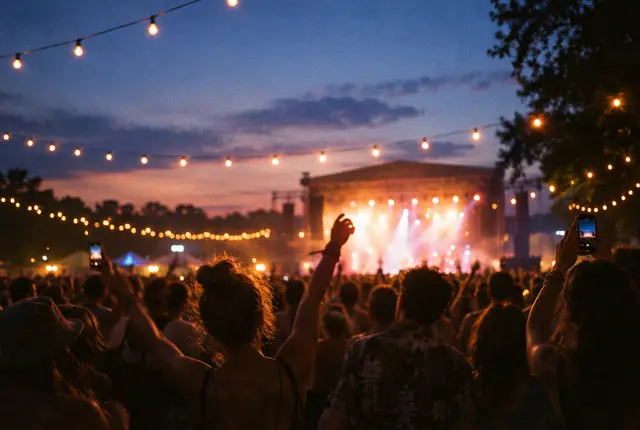
 FestivalStages, crowds and the light after sunset.
 LaunchThe reveal, seen from the whole room at once.
 Private eventA dinner among friends, kept among friends.
Security and privacy
Guests’ photos are treated like guest data.
Because they are. The same workspace separation and access rules that protect your guest list apply to every moment.
Trust & Security Center- Media is stored privately in the EU (Frankfurt).
- Every link to a file is signed and expires.
- Nothing is public until an organiser approves it.
- Photos on the wall and in the gallery are shown without location or camera data.
- Guests can take back what they sent, from their own receipt.
- No automated moderation: people on your team decide what is shown.
Questions
Do guests need to install an app or create an account?
No. They scan a QR code with their phone’s camera and send from the page that opens. There is nothing to install and nothing to sign up for.
Will anything appear on the screen without us seeing it first?
No. Every moment waits in your media library until someone on your team approves it. Only approved moments can reach the Live Wall or a gallery.
Can guests send videos, and photos from an iPhone?
Yes. Videos are accepted with a poster frame taken from each clip, and HEIC photos are converted in the guest’s browser before they are sent.
What exactly do guests agree to?
Two separate things. Keeping the moment in the event’s collection is required to send it. Promotional use is a second, optional choice that is unticked unless the guest ticks it. Both answers are stored with the moment.
Can a guest change their mind?
Yes. Every guest receives a private receipt link listing what they sent, and can take any of it back from there.
Do you filter or tag photos with AI?
No. MomentFlow has no automated moderation and no AI features. What is shown is decided by the people on your team.
Where are the files kept?
In private object storage in the EU (Frankfurt). Links to files are signed and expire, and photos shown on the wall or in a gallery are re-rendered without location or camera data.
How long can guests keep sending?
You choose: until the event ends, for up to seven days afterwards, until a date you set, or until you close it yourself.
Can we download everything afterwards?
Yes. You can export the original files as a ZIP — all of them, or just a selection or a collection.
Let the room keep the evening.
Winglark is in early access. Tell us about your next event and we will open your workspace.