For the organiser, while it happens
The evening, while it happens.
Event Control Room is one screen for the event as it runs: who has arrived against who is expected, every door and the team on it, what the room is answering, the photos coming in, and the few things that need you now. It sits inside the event, and every number on it comes from something that really happened.
- Arrivals against expected
- Doors, team and phones
- A list of what needs you
20:00
Updated 20:00:12
Needs you
- Door phone “Door 2 — iPhone” has 4 check-ins waiting to sync
- 6 questions waiting for you
As it happens
- Mateo Ruiz checked in at Main door
- A poll went live
- 9 moments were shared
- Clara Weiss checked in at Garden gate, party of 2
- A question was asked
- Announcement: “The keynote starts in ten minutes in the main ha”
Doors
- Main doorOpen · 3 at the door121
- Garden gateOpen · 2 at the door48
- Press entranceOpen · 1 at the door18
Quick actions
Illustration: the evening, names and figures are invented.
Five hours, one screen
Drag through the evening.
The same screen at six and at eleven: what changes is what the evening is doing. Move the clock and watch it.
20:00
The room is talking
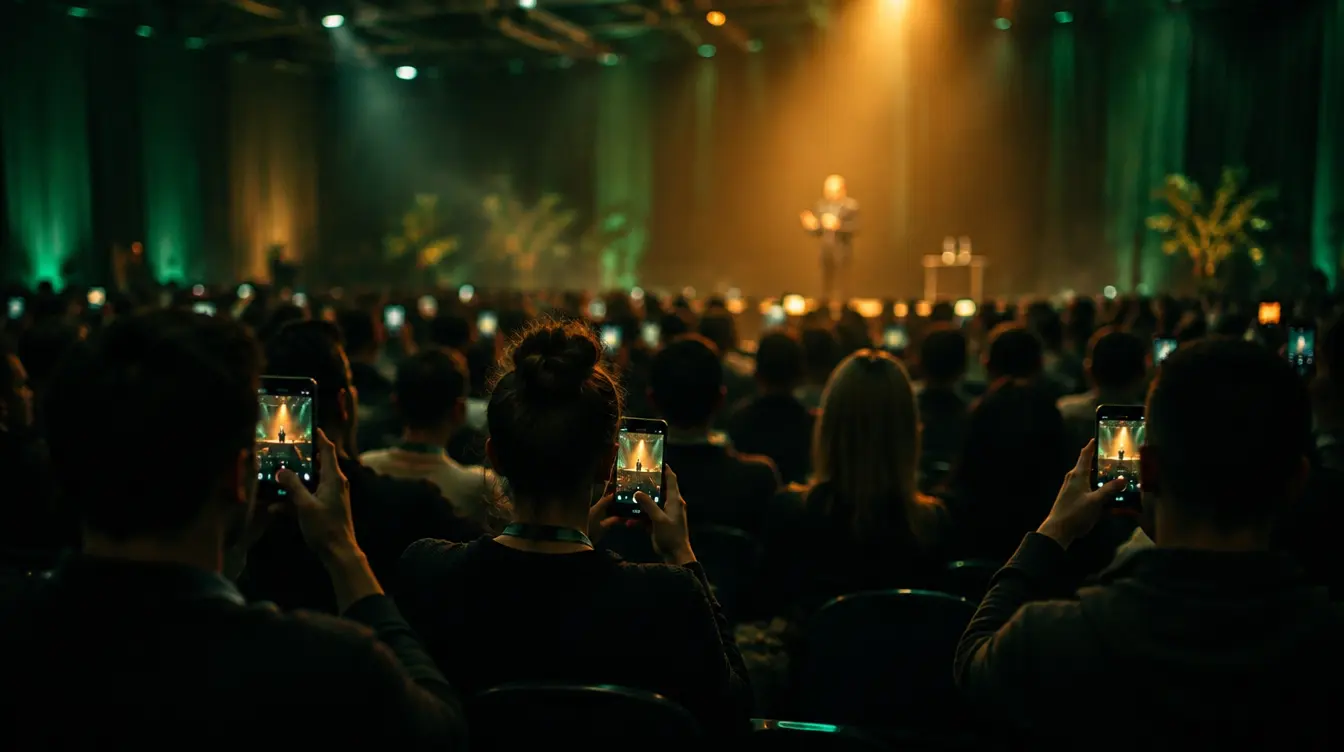
A poll is live, questions are coming in, the Live Wall is playing the first photographs.
20:00
Updated 20:00:12
Needs you
- Door phone “Door 2 — iPhone” has 4 check-ins waiting to sync
- 6 questions waiting for you
As it happens
- Mateo Ruiz checked in at Main door
- A poll went live
- 9 moments were shared
- Clara Weiss checked in at Garden gate, party of 2
- A question was asked
- Announcement: “The keynote starts in ten minutes in the main ha”
Doors
- Main doorOpen · 3 at the door121
- Garden gateOpen · 2 at the door48
- Press entranceOpen · 1 at the door18
Quick actions
Every block is real
Nothing on the screen is estimated.
Each block reads the record it describes. A block with nothing behind it — no door check-in for this event, no photos switched on — is simply not shown.
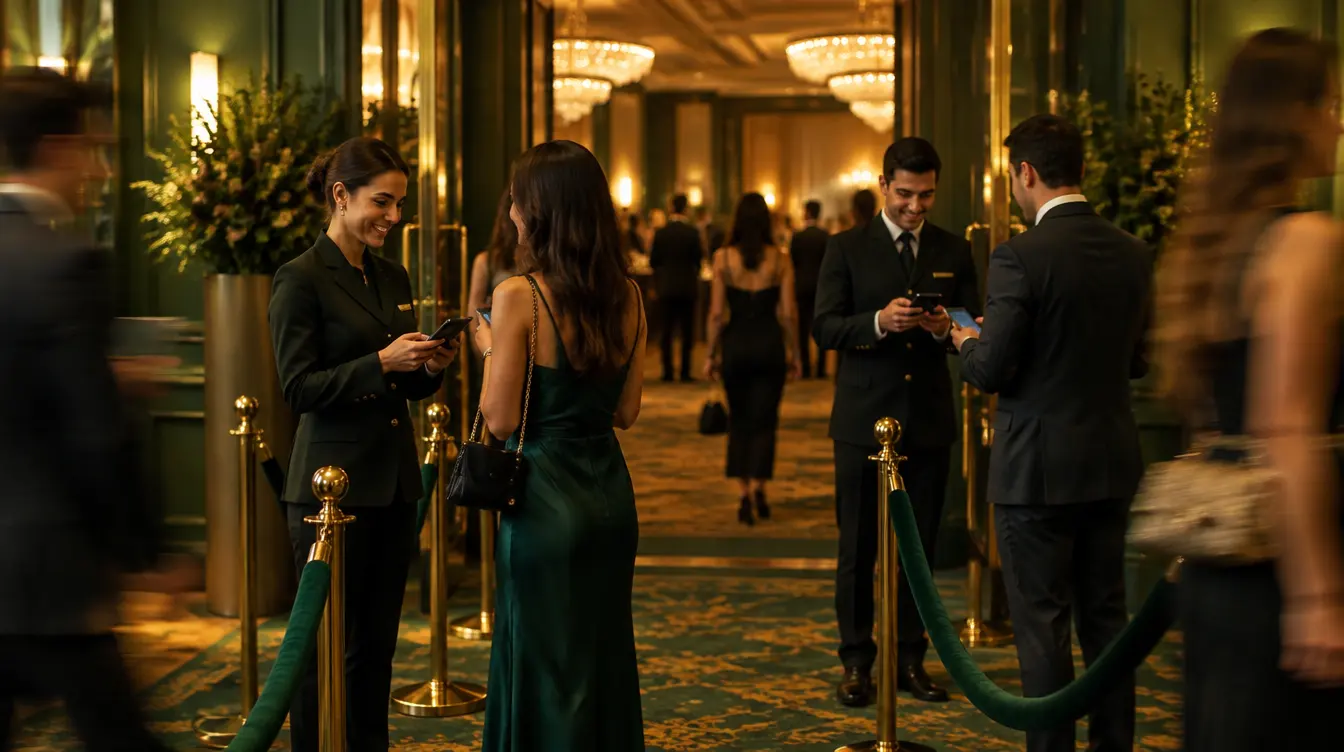
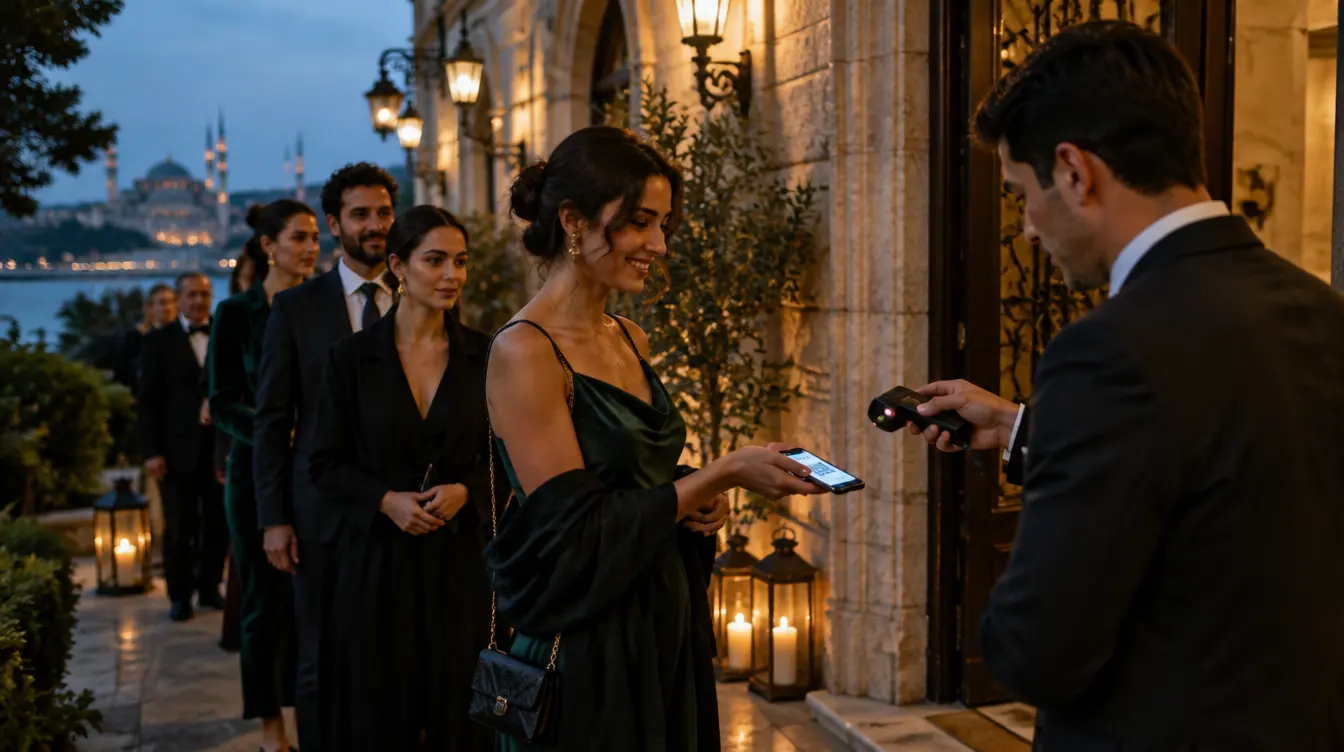
- GatePassArrivals and doorsFrom GatePass check-ins: who came in, at which door, in the last hour, and whether each door is open.
- RSVP managementExpectedFrom the replies: everyone who said yes, with their party sizes, so a family of four counts as four.
- LivePulseThe roomFrom LivePulse: what is live, how many have answered, how many questions are waiting.
- MomentFlowMomentsFrom MomentFlow: uploads, what waits for approval, and whether the Live Wall is running.
- CompanionGuests’ pagesFrom Companion: how many guests have opened theirs, and which announcements are showing.
One event, one record — read, not copied.
Needs you
The short list that matters at nine in the evening.
Most of an evening needs nobody. The list says only what does — and each line leads to the place where it is fixed.
- At the door
- A door phone with check-ins waiting to sync, double entries made offline to review, a run of refused passes.
- In the room
- Questions piling up in the queue, waiting for somebody to approve them.
- On the screens
- Moments waiting to be approved, and a Live Wall or room screen that has stopped reporting in.
- Door phone “Door 2” has 4 check-ins waiting to sync
- 6 questions waiting for you
- 12 moments waiting for approval
Illustration: the evening, names and figures are invented.
Act from the same screen
See it, then fix it without leaving.
The quick actions are the six things an organiser reaches for during an event: open the door view, start a poll, review questions, review moments, open the room screen, preview a guest’s page — and publish an announcement in one line.
- Open the door view
- Start a poll
- Review questions
- Review moments
- Open the room screen
- Preview Companion
The approval desk, inline
Moments waiting for approval are approved or rejected right there, without opening the library.
Who sees it
Run by the people running the evening.
The control room follows the workspace’s roles, so the door team keeps its door view and the people steering the evening get the whole picture.
- Owners and managers
- See everything and run everything, including the live settings.
- Guest managers
- Operate the evening: polls, questions and announcements.
- Marketing
- See the evening as it runs, without changing it.
- Door staff
- Keep their own door view; the control room is not part of it.
Quietly current
Fresh while you watch, silent when you look away.
The screen refreshes about every fifteen seconds while its tab is open and stops when it is not — current enough to act on, and no load on anything while nobody is looking.
- About every 15 seconds
- The figures, the list and the timeline update together.
- Only while open
- A background tab does not refresh. Come back and it catches up.
- Says when it is stale
- If an update fails, the screen tells you instead of showing old numbers as new.
Questions
Where is the control room?
Inside each event in the Winglark app, under the event’s Live section. It is for one event at a time.
Where do the arrival numbers come from?
From GatePass check-ins at the door, set against the guests who replied yes with their party sizes. Without door check-in for the event, the arrivals block is not shown.
Can the door team see it?
No. Door staff keep their own door view. Owners and managers run the control room, guest managers can operate polls, questions and announcements, and marketing can view it.
Does it work on a tablet?
Yes. It is a page in the browser and reflows for a tablet or a phone.
Are poll results kept in the report afterwards?
No. The event report covers invitations, replies and arrivals; poll and question results are seen live, in the event’s live section.
Know how the evening is going, while it is still going.
Turn on the live layer for your next event, and the control room opens under the event’s Live section.